oper8r Docs
Context Layer
The Context Layer is where oper8r keeps the source material it uses to search, answer questions, and draft RFP or security questionnaire responses. It brings together uploaded files, curated knowledge, company identity, website content, documentation, and connected sources so answers can be grounded in evidence instead of memory.
In the app, open Context Layer from the main navigation. Use it to decide what oper8r should know, which sources are available for response work, and what needs review before it is reused.
What Belongs In The Context Layer
Good Context Layer content is material your team is comfortable using as evidence for answers:
- Completed RFPs and security questionnaires.
- Approved answer libraries, FAQs, and boilerplate.
- Security, compliance, privacy, and procurement documents.
- Product documentation and implementation notes.
- Company profile, positioning, and website content.
- Selected Google Drive files or other connected source material.
The Context Layer should stay focused on information that helps oper8r answer accurately. Avoid adding raw credentials, unrelated personal data, unsupported claims, or old files that should no longer be cited.
Knowledge Library
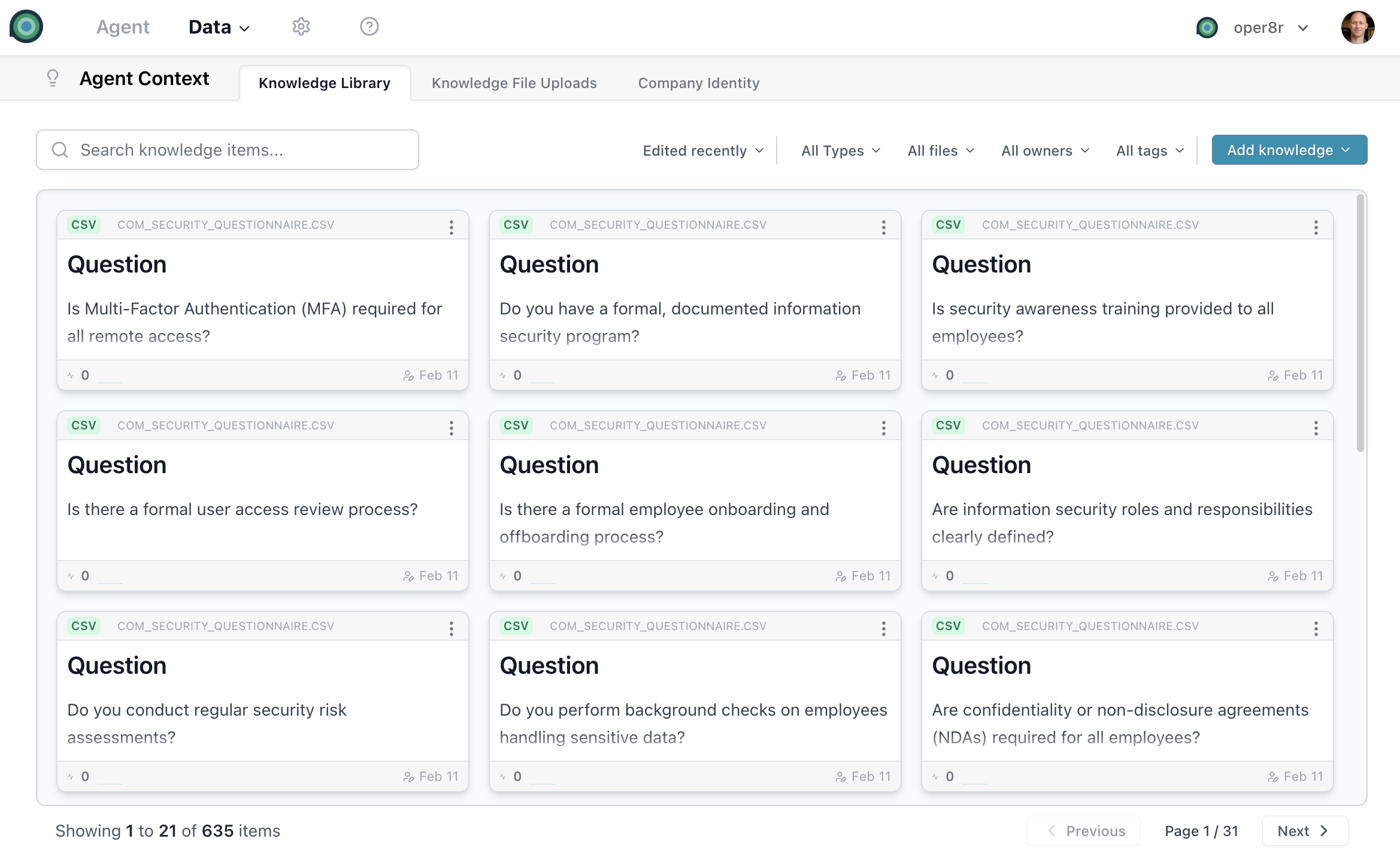
The Knowledge Library is the structured part of the Context Layer. It stores reusable answers, source-backed notes, uploaded file excerpts, and other pieces of knowledge that oper8r can retrieve when drafting responses.
Knowledge Item Types
Each knowledge item is categorized by how it entered the Context Layer:
| Type | Description |
|---|---|
| Uploaded file | Extracted from a file you uploaded, such as an RFP, FAQ, policy, or questionnaire. |
| Agent generated | Created by oper8r during a workflow when it identifies reusable content. |
| User generated | Manually created by a team member. |
| Knowledge gap | Identified by oper8r as missing information that should be filled or reviewed. |
Creating Knowledge Items
There are several ways to add knowledge:
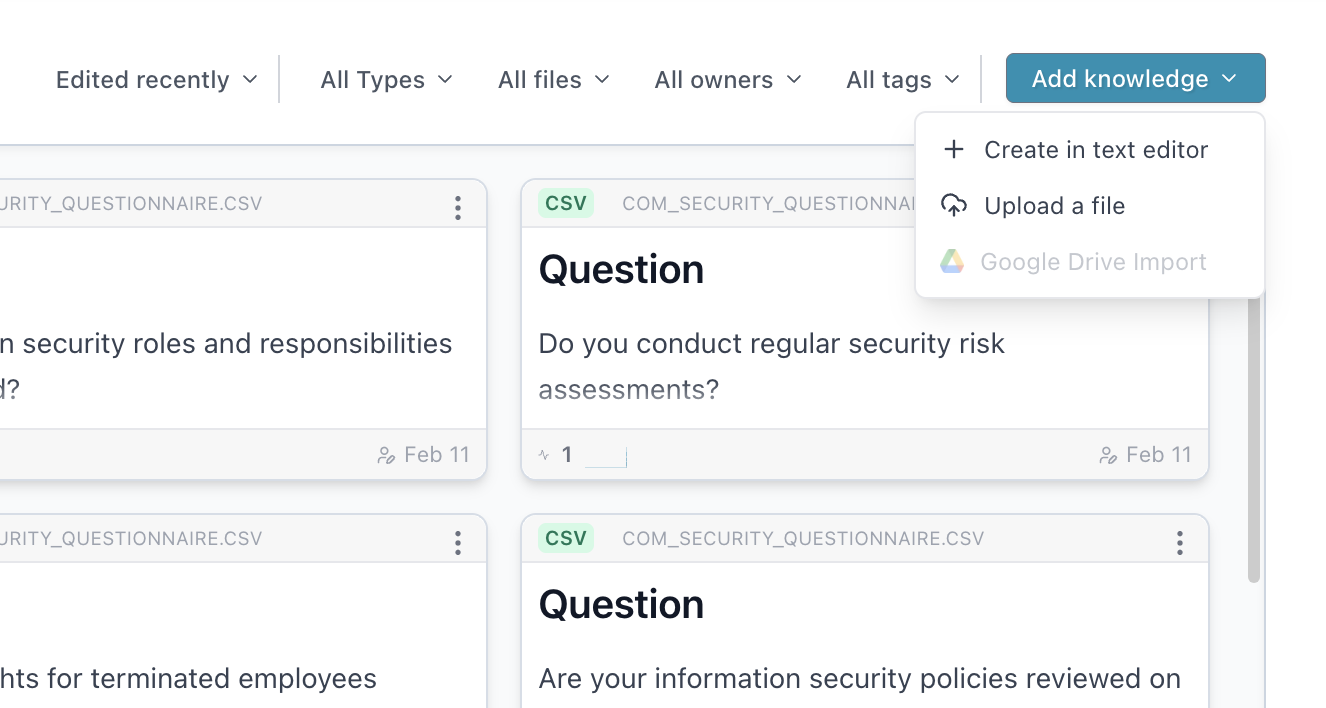
- Create in text editor - write new content directly in the rich markdown editor.
- Upload a file - import content from documents, spreadsheets, PDFs, and other supported files.
- Auto-generated - let oper8r create reusable items during sessions when it finds information worth saving.
Rich Markdown Editor
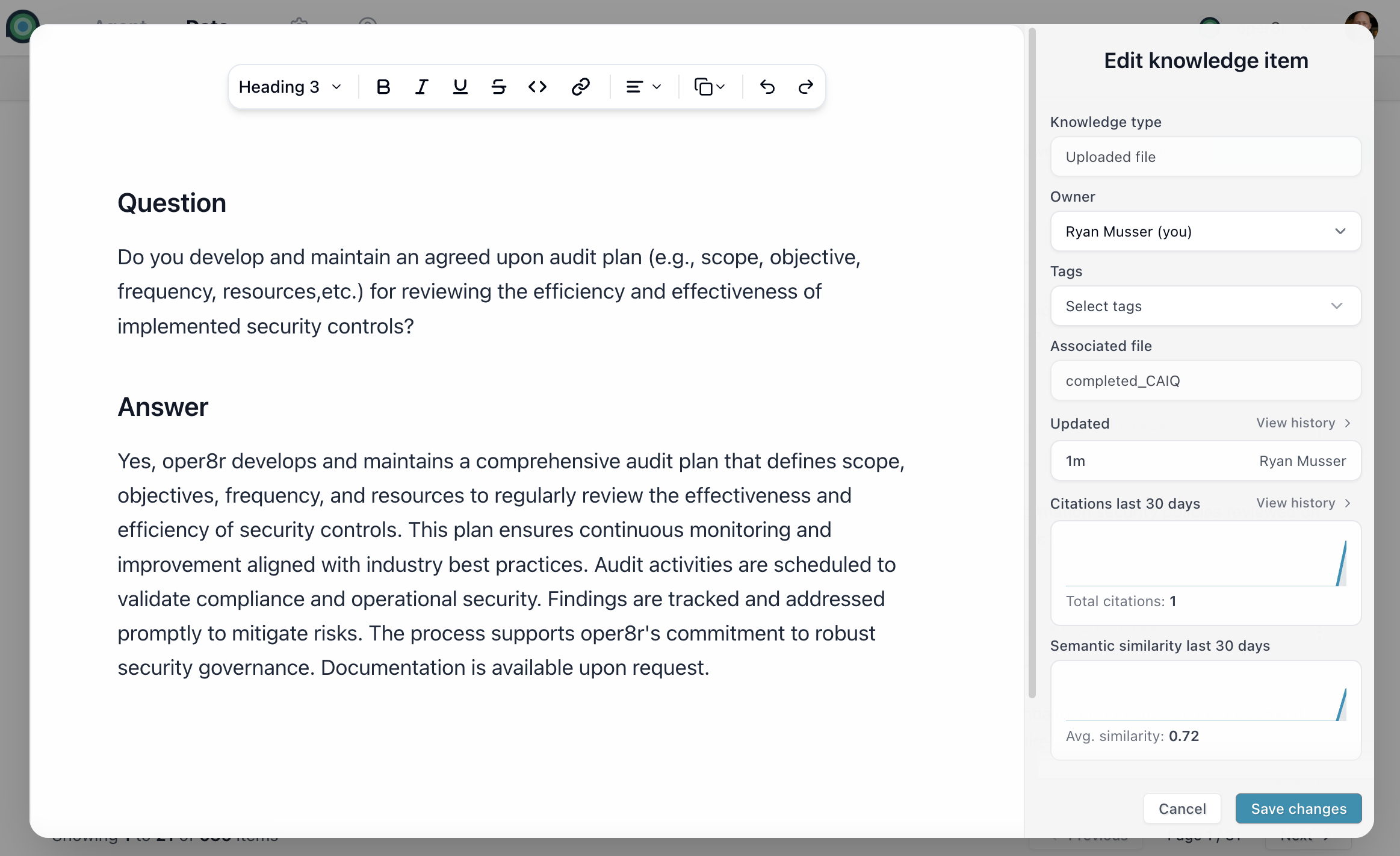
Click a knowledge item to open its detail view. The editor lets you review and update the content, while the side panel shows metadata, version history, citations, and retrieval signals.
Organization And Ownership
Keep the library easy to search and review with:
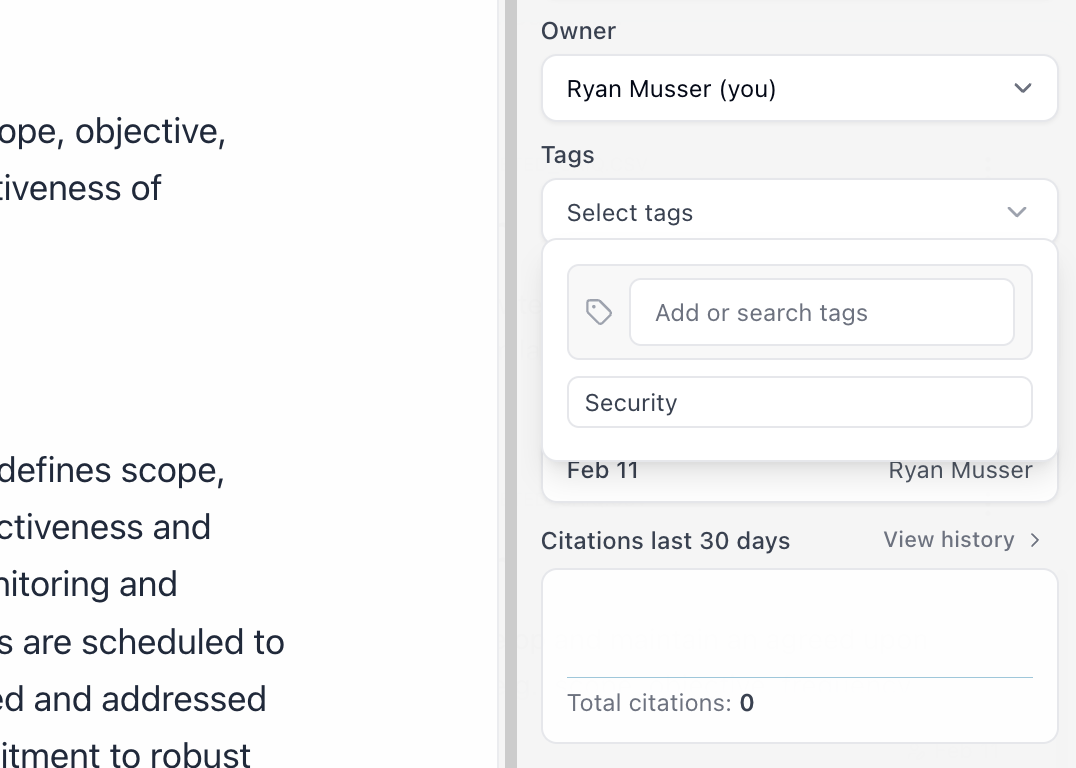
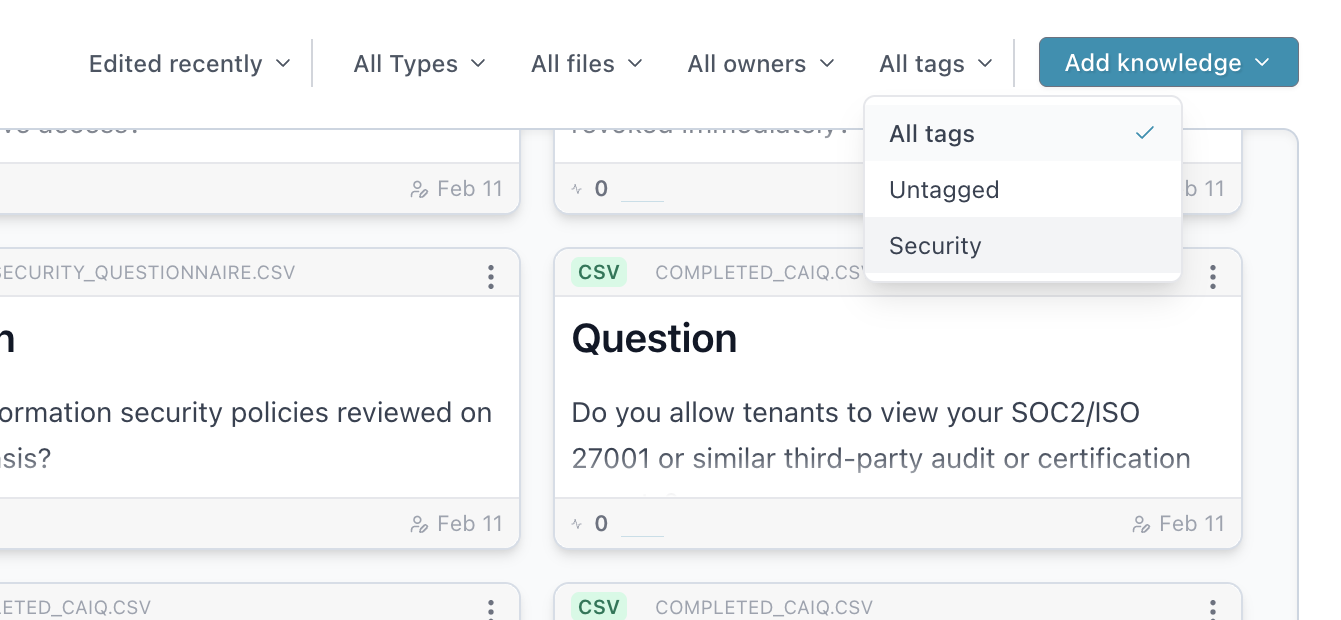
- Tags - label items by topic, product, policy area, industry, or any taxonomy your team uses.
- Owner assignment - make one teammate responsible for keeping a knowledge item current.
- Type-based grouping - filter by uploaded file, user generated item, agent generated item, or knowledge gap.
- File-based grouping - review all items extracted from a specific upload or source file.
Search And Retrieval
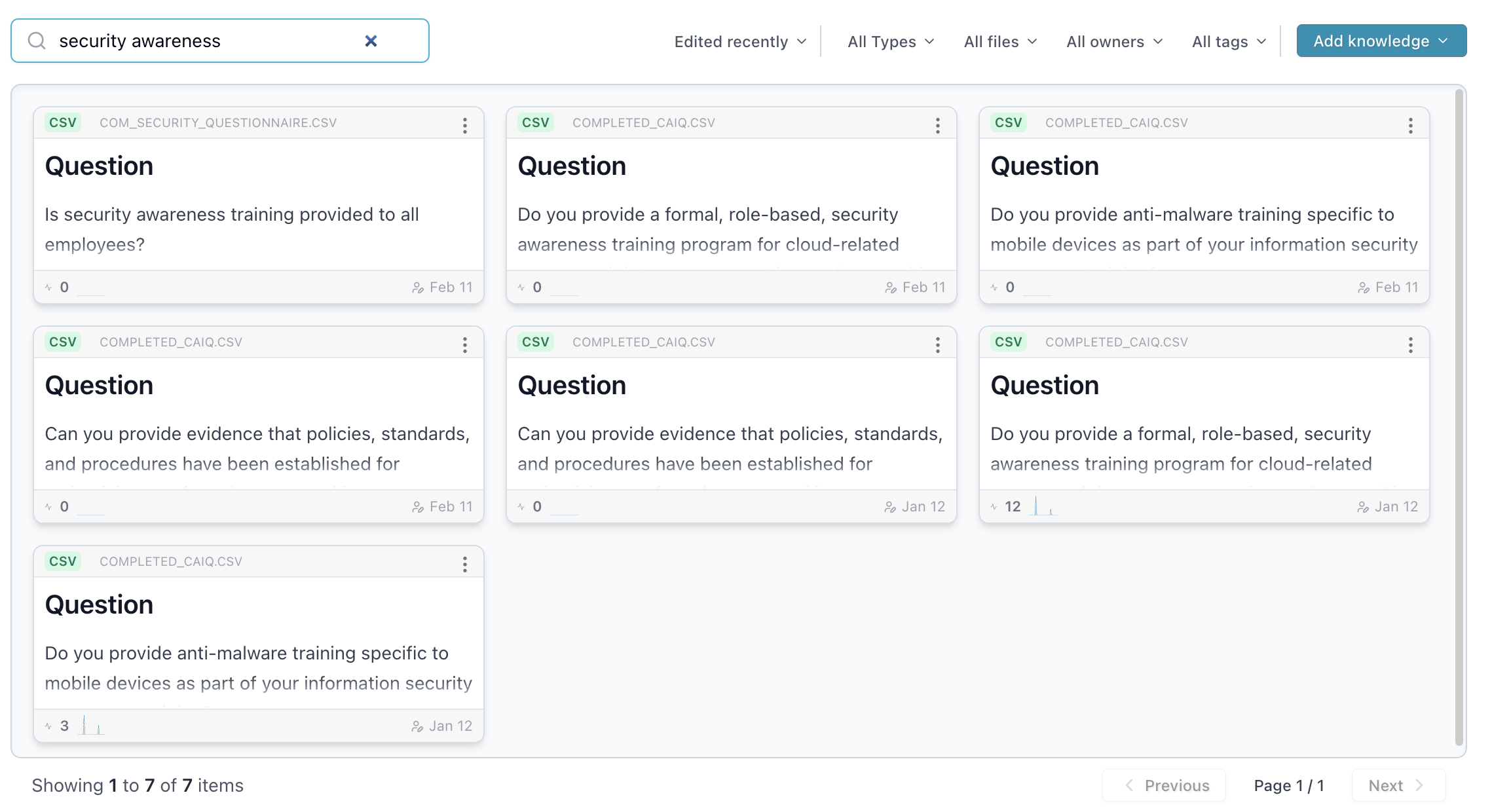
Use search and filters to find the material oper8r can use:
- Text search - search across all knowledge items by keyword.
- Multi-faceted filtering - combine filters for type, file, owner, and tag.
- Sorting options - order by edited recently, cited most, created recently, and other review signals.
Version History
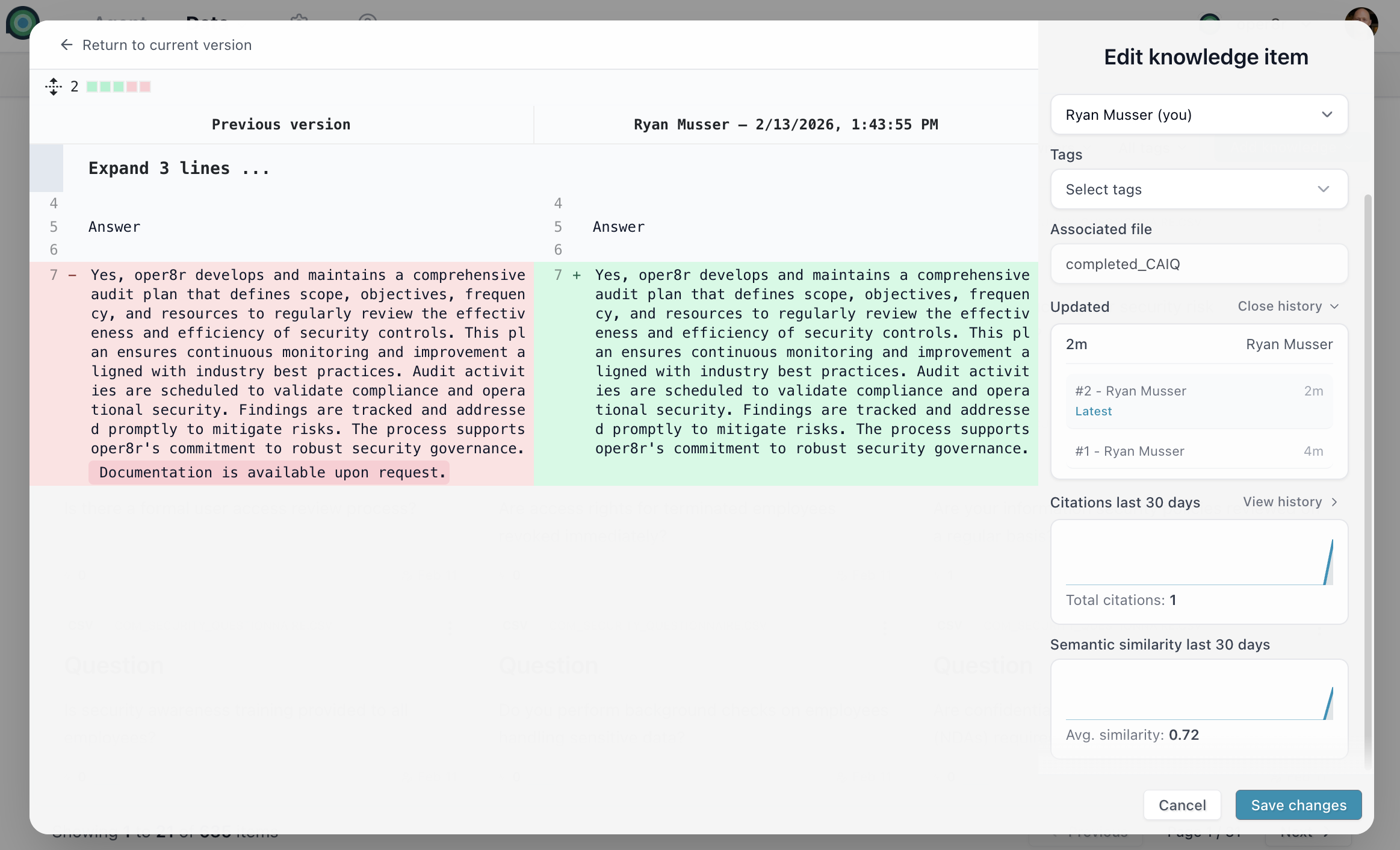
The Context Layer should reflect the latest approved version of your source material. Older versions are retained so reviewers can understand how a knowledge item changed over time.
- Auto-snapshots - edits automatically create version snapshots.
- Diff view - compare two versions side by side.
- Version history - see who changed an item and when.
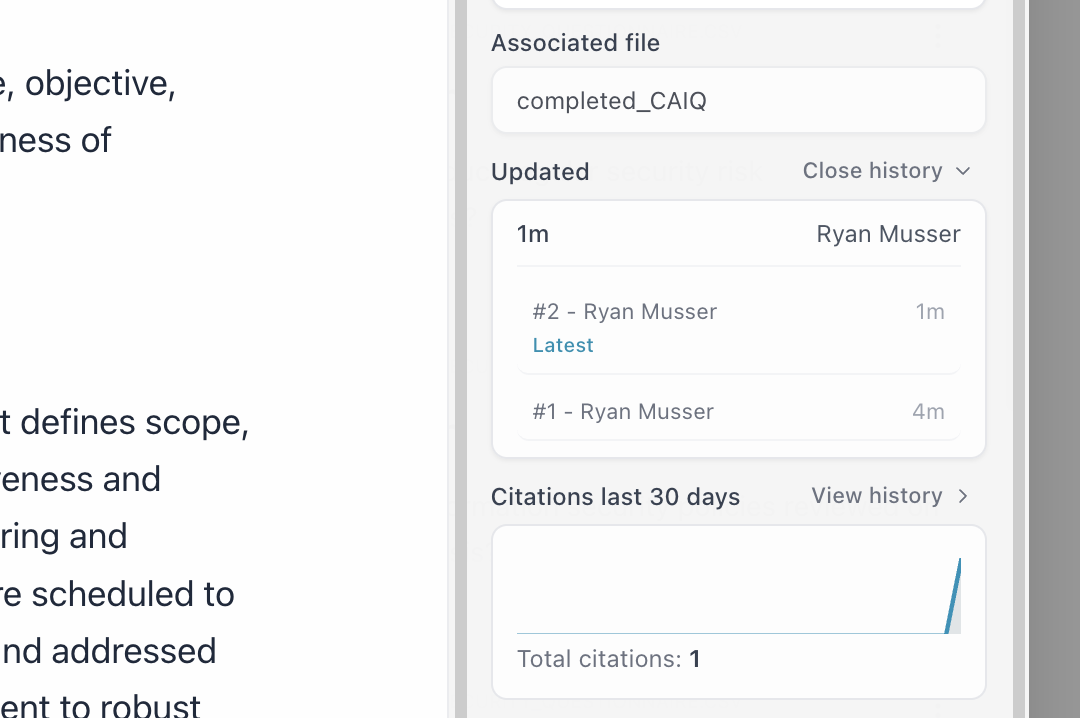
Every edit creates a snapshot with change metadata. This gives reviewers a clear trail when a policy answer, product statement, or security response changes.
Citation And Usage Tracking
Citation tracking helps you understand which Context Layer items are actually used in response work.
- Total citation count - see how many times each item has been cited.
- 30-day trend - review recent usage over time.
- Per-session citation logs - see whether an item was used in Chat, Document, Spreadsheet, or another workflow.
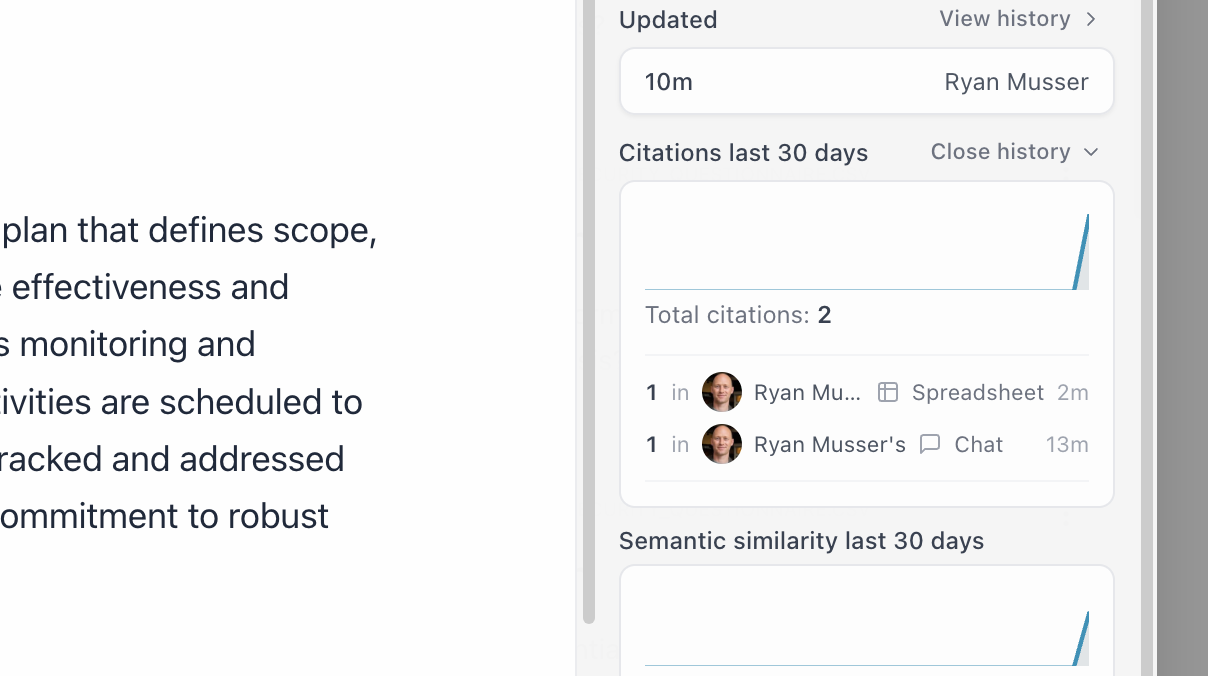
oper8r also records retrieval signals when items are matched during sessions. This helps you spot which answers are useful, which items may be duplicated, and where the team may need better source material.
File Uploads
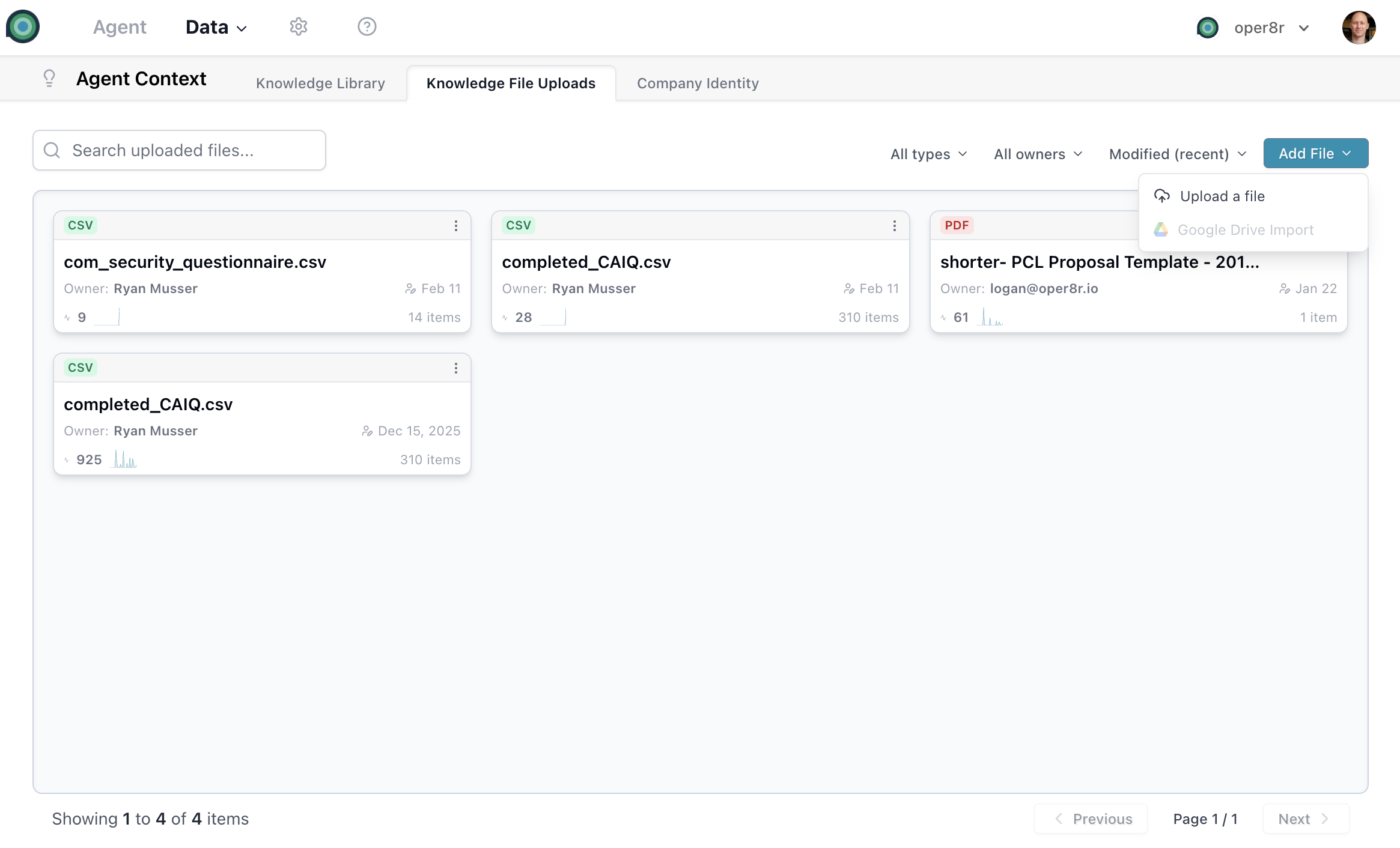
Upload files that contain source material oper8r should use. Files are stored, parsed, converted into searchable text, and broken into chunks that can be retrieved during answer generation.
Good uploads include completed questionnaires, RFPs, FAQs, trust center summaries, security docs, product documentation, implementation notes, and other materials your team frequently reuses.
Supported File Types
CSV, DOC, DOCX, MD, MDX, ODP, ODS, ODT, PDF, PPT, PPTX, TXT, XLS, XLSX
Processing Pipeline
When you upload a file, oper8r:
- Stores the file in its original format.
- Converts the content into searchable text.
- Chunks and indexes the content for retrieval.
- Creates knowledge items when the file contains reusable answer material.
Uploaded files can then be used across Chat, Document, and Spreadsheet workflows when the source is available to the user and selected for the task.
Company Identity
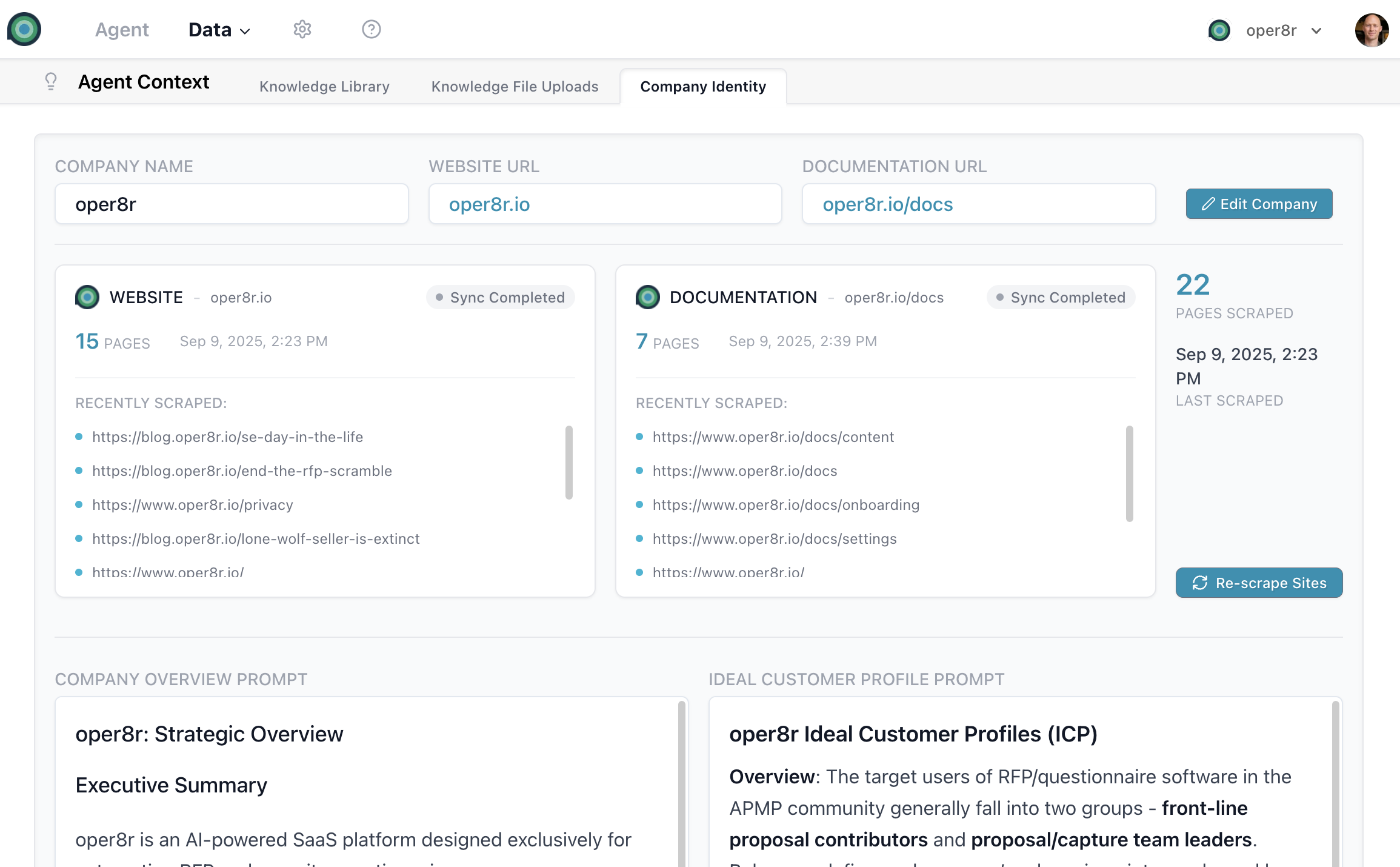
Company Identity is part of the Context Layer. It stores the foundational details oper8r uses when it needs to understand who your company is, what you sell, and how responses should refer to your organization.
Core Fields
These fields are set during onboarding and can be edited later:
- Company Name - how oper8r refers to your company.
- Website URL - your company's primary website.
- Documentation URL - your product documentation site, if available.
Generated Company Context
oper8r can generate editable company context from your website and documentation:
- Company Overview - a description of your company, products, and value proposition.
- Ideal Customer Profile (ICP) - a description of the audiences, industries, and roles your company serves.
Review these fields before relying on them in responses. They should reflect how your team wants oper8r to describe the company.
Website And Documentation Sources
oper8r can crawl your website and documentation so current product, security, and implementation information is available for cited answers.
Crawl Status
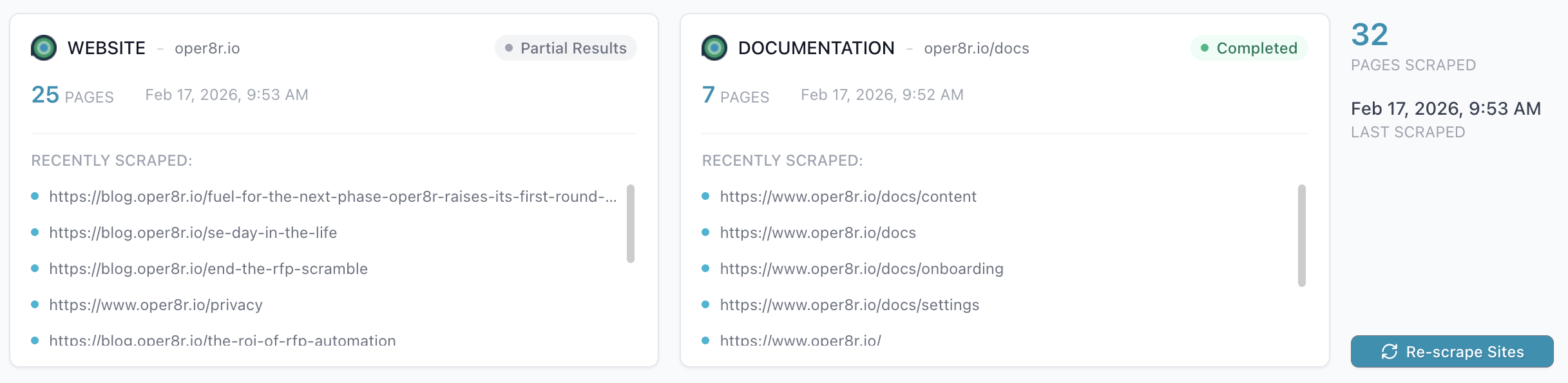
The scrape status card shows progress and recency for website and documentation sources:
- Page count - how many pages have been crawled.
- Crawled URLs - a list of recently processed pages.
- Last crawled timestamp - when the last crawl completed.
- Status indicators - completed, in progress, or pending.
Re-Crawling
Click Re-scrape Sites to refresh website or documentation content. The re-scrape flow lets you:
- Edit URLs before crawling again.
- Validate URLs as you type.
- Confirm content before starting the crawl.
- Start the crawl once validation passes.
Crawling Details
oper8r crawls up to 500 pages by default and unlimited pages for enterprise deployments, going up to 20 levels deep per crawl. It removes common page noise such as cookie banners, navigation, ads, sidebars, and footers so the Context Layer can focus on meaningful content.
Keeping Sources Current
Website data stays current with automatic weekly re-crawling. Use the crawl status card to confirm whether source material is fresh enough for the response work you are doing.
Just want to talk it out?
We'd be happy to help you get started. The best starting point is usually a live RFP, security questionnaire, or knowledge base that already costs the team time to search, verify, and reuse.